Turning the Printer On and Off
Checking that Power Is On
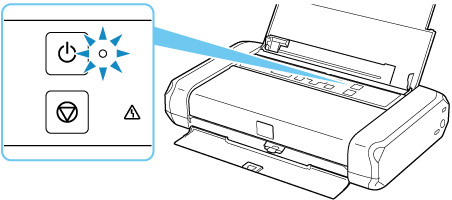
The ON lamp is lit when the printer is turned on.
Even if the LCD is off, if the ON lamp is lit, the printer is on.
 Note
Note
-
It may take a while for the printer to start printing immediately after you turn on the printer.
-
The LCD will turn off if the printer is not operated for about 3 minutes. To restore the display, press any button or perform the print operation.
Turning on the printer
-
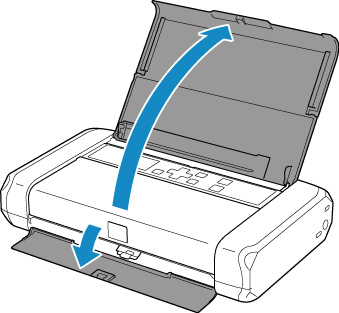
Open the rear tray cover.
The paper output slot cover opens automatically.
-
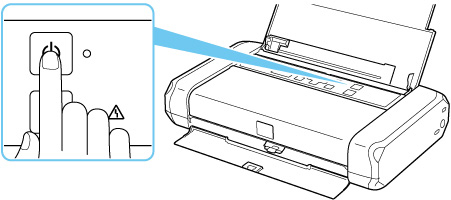
Press the ON button until the ON lamp is lit to turn on the printer.
 Note
Note-
It may take a while for the printer to start printing immediately after you turn on the printer.
-
If an error message is displayed on the LCD, see When Error Occurred.
-
You can set the printer to automatically turn on when a print operation is performed from a computer connected by USB cable or wireless network. This feature is set to off by default.
From the printer
From the computer
-
For Windows:
-
For macOS:
-
-
If you use the battery, make sure that it is charged. For details on how to check it, refer to Using the Battery.
-
Turning off the printer
-
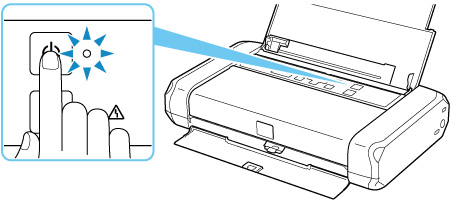
Press the ON button for more than one second to turn off the printer.
-
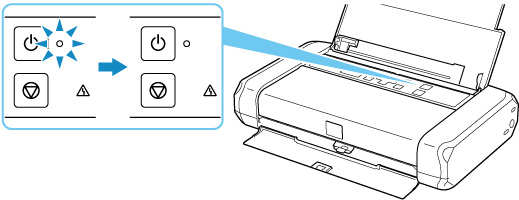
Confirm that the ON lamp is off.
-
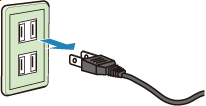
When you unplug the power cord, press the ON button, then confirm that the ON lamp is off. Unplugging the power cord while the ON lamp is lit or flashing may cause drying or clogging of the print head and print quality may be reduced.
-
If you stand the printer up or carry the printer before the ON lamp goes off, this may cause the ink to leak or the printer to break.
-
It may take up to 40 seconds until the power is turned off.
 Important
Note
